Translating in Trados Studio by talking to Claude
For as long as I’ve been translating, the basic activity has been the same: look at a segment, type. The tools around it have changed enormously – CAT tools, translation memories, termbases, machine translation – but the typing hasn’t.
That has now changed for me, and this post describes the setup.
The Supervertaler MCP Server
The Supervertaler MCP Server connects Claude for Desktop to Supervertaler for Trados, my plug-in for Trados Studio 2024 and 2026. Once connected, Claude can see my open Trados project – the segments, my termbases, my translation memories and Studio comments – and it can change them.
MCP (Model Context Protocol) is the open standard that lets an AI assistant like Claude talk to other software on your computer. Because it’s an open standard, Claude for Desktop isn’t the only option: the same server also works from Claude Code in VS Code or in a terminal.
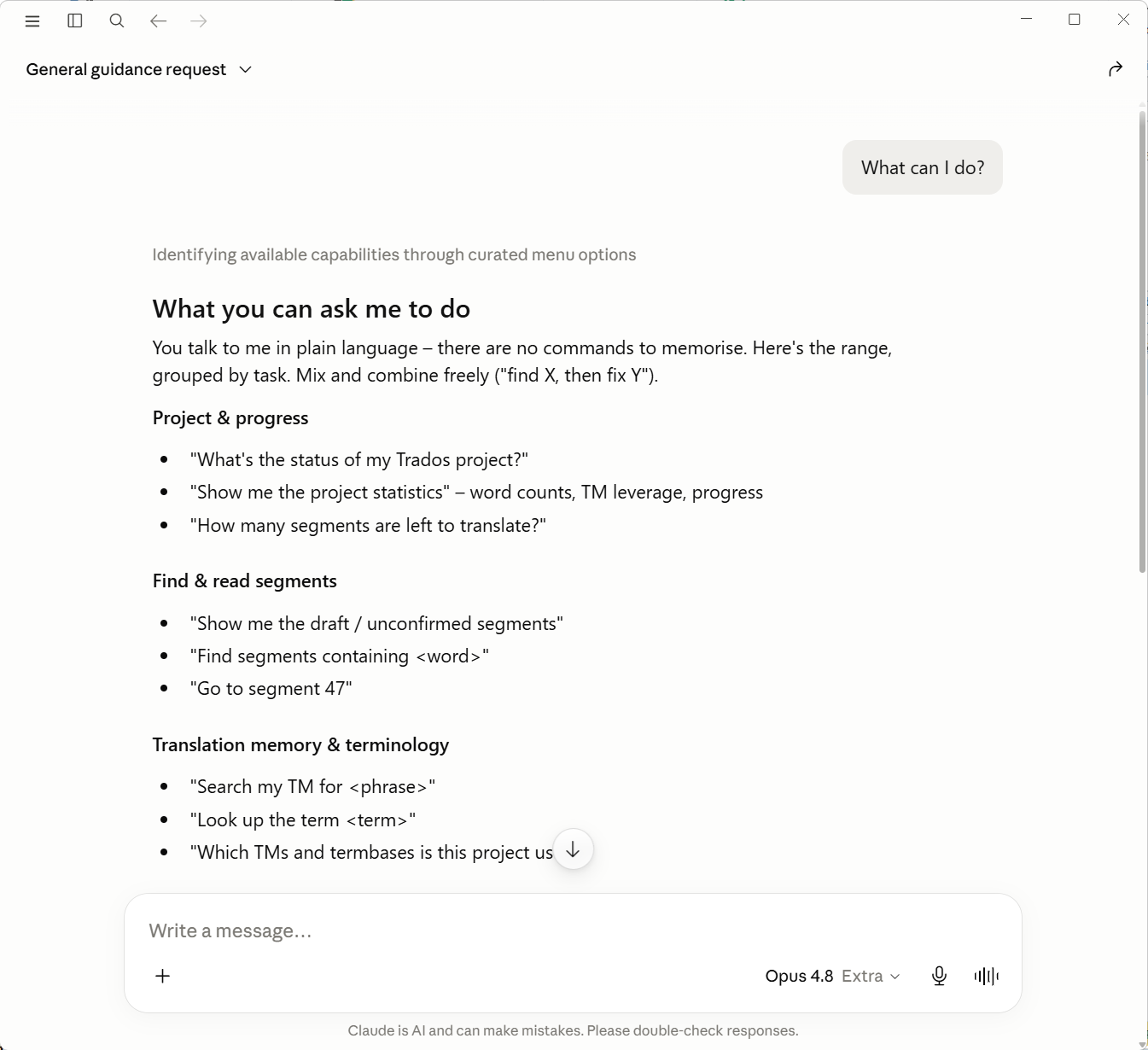
There are no commands to learn; you just ask in plain language. If you’re not sure what’s possible, ask Claude “What can I do?”:
How it works
All of this rests on Trados Studio’s public APIs. Studio has a .NET plug-in framework that gives third-party developers access to most of what Studio itself can do: the editor and the active segment, the content of the bilingual files (comments included), batch tasks, translation memories and termbases.
The MCP Server is a thin layer on top of that. Claude sends a request – “get me the segments”, “search the TM”, “update this target” – and the plug-in running inside Studio carries it out through those APIs. That’s how it can offer around fifty different operations.
Credit where it’s due: none of this would be possible without that API, or without the RWS AppStore (which started life in 2010 as SDL OpenExchange), through which Supervertaler for Trados is distributed. I don’t know of another commercial CAT tool with anything comparable.
The workflow
- I open the project in Trados Studio 2026.
- I start a new chat in Claude for Desktop with a prompt along these lines:
I’m translating a project from English into Dutch, and I have it open in Trados Studio 2026. Please analyse the project.
As you’ll see, a large portion of it is already 100% and CM (context) matches – i.e. confirmed. As a rule, we can ignore any confirmed segment. Your job is to translate the rest and make sure it’s consistent with the whole document.
It’s also your job to make sure the whole document is consistent and correct. If you find things in already-confirmed segments that aren’t correct, you can fix them.
If you find a segment that isn’t confirmed, isn’t set to translated, and has a high fuzzy match (say 93–95%), you can use it as a reference – but make sure to insert a 100% correct translation. Don’t just copy high matches or use them without thinking.
Please also consult all the client’s notes and references in this folder: D:\Example\refs
You can also look at the source document as a PDF for reference if you need it: D:\Example\Example source document.pdf
- Then I work through the project by chatting with Claude.
Talking instead of typing
I don’t type any of this. I use Wispr Flow to dictate everything I say to Claude. The Claude chat is on one monitor and Trados Studio on the other, so I can watch segments fill in, statuses change and comments appear as I talk.
Translating then becomes a conversation about the document:
- “Have a look at segments 40 to 60 – the client’s reference PDF uses a different term for that component; check which one and make it consistent throughout.”
- “That fuzzy match in the active segment is close, but the date format is wrong – fix it and confirm.”
- “Search the TM for how we translated this phrase last time, and use that.”
Any dictation tool will do, as long as it’s fast and accurate. If it isn’t, you end up reaching for the keyboard again.
Checking the whole job
A small real example: I asked Claude to go through the open project and give me a working glossary to use while translating. It read the whole job, checked my termbase, and produced this, noting where a translation was already in my termbase:
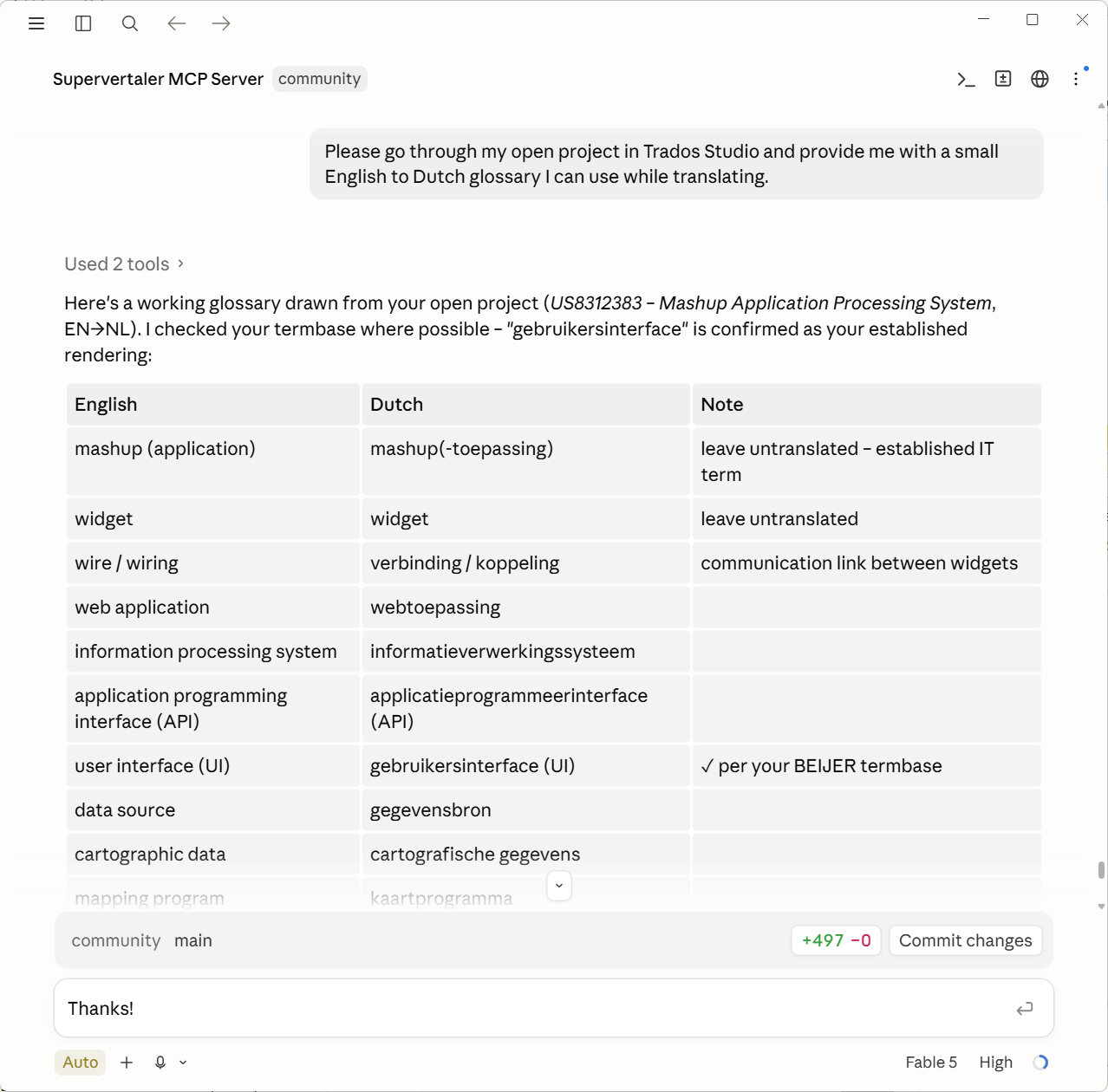
Because Claude has the whole job in view, it also catches things I would only find by re-reading everything: a term translated one way in segment 12 and another way in segment 847, a number that doesn’t match the source, a confirmed 100% match that is wrong in this context. The QA checks built into CAT tools – numbers, tags, forbidden terms – still have their place, but they don’t actually read the text.
It isn’t infallible, and I still check its work. By default, everything it writes lands as a draft, so I review it before anything gets confirmed.
Improving the tool while using it
If Claude can’t do something because the MCP Server doesn’t support it yet, I switch to the Claude Code tab in the Claude desktop app and ask it to add the feature to the plug-in. Then I switch back and carry on translating. The tool improves while I’m using it on a real job.
Try it yourself
To try this workflow, install the trial version of Supervertaler for Trados from the RWS AppStore. Setting up the MCP Server is described in the documentation.
The trial runs for 14 days, but if you need longer, just ask. Questions are welcome at [email protected].